Managing a smart home should feel effortless, but without the right hub at the center of it all, you end up with a fragmented mess of incompatible apps, missed automations, and devices that refuse to cooperate. Our independent editorial team at HomeThru spent weeks researching, analyzing, and comparing the top smart home hubs available right now, evaluating protocol support, ecosystem compatibility, local processing capability, setup experience, and long-term reliability. Whether you are just getting started with a handful of smart bulbs and a Wi-Fi outlet or two, or you are building a sophisticated whole-home system with cameras, sensors, and connected door locks, this guide will help you find exactly the right hub for your needs and budget.
The smart home hub landscape has shifted dramatically with the arrival of the Matter protocol, which promises genuine cross-brand interoperability for the first time. Thread border router support, local processing, and Zigbee or Z-Wave radios are no longer premium features reserved for enterprise-grade hardware. We evaluated products from Aqara, Lutron, SmartThings, Tapo, and Kasa to bring you the most balanced picture possible. Below you will find our curated list, followed by a detailed buying guide that breaks down everything you need to know before spending a single dollar.
Top Smart Home Hubs We Reviewed

Pros
- Exceptional compatibility covers both modern smart devices and older infrared-controlled appliances, making it future-proof for mixed homes
- Matter certification ensures this hub will remain compatible as your smart home ecosystem grows across platforms
- Location-based and schedule-based automations deliver genuine energy savings by preventing devices from running unnecessarily
- Built-in alarm and sensor integration provide security and peace of mind beyond basic device control
- Straightforward app interface makes pairing legacy devices simple without technical expertise
Cons
- No reviews available yet, so real-world user feedback on long-term reliability and performance is limited
- Requires 2.4 GHz WiFi and devices must be within infrared range, which may be limiting in larger homes or for devices in different rooms
The Tapo H110 Smart IR Hub addresses a real pain point for homeowners with mixed smart home setups: the inability to control older infrared devices alongside newer smart gadgets. By supporting 8,000+ infrared brands across 18 appliance types, this hub consolidates control of everything from vintage air conditioners and ceiling fans to modern smart lights and robot vacuums into a single platform. The Matter certification is a significant advantage, ensuring that as smart home standards evolve, your hub remains compatible with major platforms like Apple Home, Google Home, and Amazon Alexa.
Beyond basic remote control, the H110 delivers practical automation features that genuinely improve daily life. Location-based triggers mean your AC can be running comfortably when you arrive home, and devices automatically power down when you leave. The built-in 93 dB alarm paired with optional Tapo sensors creates a security layer that typical IR hubs don't offer. Voice control through Alexa, Google Assistant, or Siri makes hands-free operation seamless, while the Tapo app provides full remote access so you can control forgotten appliances from anywhere. The smart pairing feature that learns legacy remote commands by scanning buttons is particularly user-friendly for those without technical expertise.
Security is taken seriously here, with TP-Link's commitment to the CISA Secure-by-Design pledge, meaning the hub is built with advanced security as a core requirement rather than an afterthought. For homeowners seeking to unify control of a diverse range of devices without replacing everything at once, the H110 offers excellent value and flexibility. The main considerations are ensuring your devices stay within infrared range and that you have stable 2.4 GHz WiFi coverage in the hub's location.
| Specification | Details |
|---|---|
| Model | Tapo H110 |
| Type | Smart IR & IoT Hub with Chime |
| Certification | Matter-Certified |
| WiFi Standard | 2.4 GHz |
| Compatible Appliance Types | 18 types (TV, AC, Fan, Light, Air Purifier, Humidifier, Set-Top Box, Robot Vacuum, Water Heater, Electric Heater, Electric Curtain, Projector, Amplifier, DVD, Camera, Foot Tub, Drying Rack, Box devices) |
| IR Brand Support | 8,000+ brands |
| Voice Assistants | Alexa, Google Assistant, Siri (via Matter) |
| Built-in Alarm | 93 dB chime |
| Remote Access | Tapo App (iOS and Android) |
| Automation Features | Custom schedules, location-based control, sensor integration |
| Security | CISA Secure-by-Design pledge compliance |
Initial Setup: Download the Tapo app, connect the H110 to your 2.4 GHz WiFi network, and follow the guided setup. The hub will prompt you to add devices and sensors.
Adding Infrared Devices: For legacy appliances, use the 'Smart Pairing' feature to scan your original remote's buttons or manually map them in the app. The hub learns commands quickly and stores them in its memory.
Voice Control Setup: Link the hub to your preferred voice assistant (Alexa, Google Assistant, or Siri) through Matter. Once connected, you can control devices hands-free using natural voice commands.
Creating Automations: Set up custom schedules (e.g., 'turn on AC at 6 AM on weekdays') or location-based triggers (e.g., 'power down TV when I leave home'). Add Tapo sensors to trigger alerts and automations based on motion, door, or window activity.
Remote Access: Use the Tapo app from anywhere to control devices, adjust settings, and receive real-time alerts. Ensure your home WiFi is stable for reliable remote access.
Optimize WiFi Placement: Position the H110 in a central location with clear line of sight to your infrared devices for best performance. Avoid placing it in cabinets or behind obstacles that block IR signals.
Leverage Sensor Integration: Pair motion and door/window sensors with the hub to create smart routines. For example, trigger lights and AC when motion is detected, or receive alerts when doors open while you're away.
Use Location-Based Automations for Energy Savings: Set up GPS-triggered automations to reduce unnecessary device runtime. Pre-cool your home 30 minutes before arrival and power down devices when everyone leaves to lower energy bills.
Create Device Groups: Organize devices by room or function in the app (e.g., 'Living Room Entertainment' or 'Bedroom Climate'). This makes bulk control easier and reduces the number of individual commands needed.
Test IR Range During Setup: Confirm that all your infrared devices are within range of the hub. If some devices don't respond, consider repositioning the hub or using IR extenders for hard-to-reach appliances.
Is This Right for You? The Tapo H110 is ideal if you have a mix of older infrared devices and newer smart home products. If your home is entirely modern smart devices, you may not need the IR hub functionality. However, most homes have at least one legacy device (old AC, ceiling fan, or TV), making this hub a practical investment.
Key Considerations Before Buying: Verify that your WiFi router broadcasts a 2.4 GHz band (most modern routers do). Ensure your infrared devices will be within 20-30 feet of the hub's line of sight. If you plan to control devices in multiple rooms far apart, confirm the IR range meets your needs or plan for additional hubs.
Matter Certification Matters: The Matter certification future-proofs your investment. As smart home standards evolve, this hub will remain compatible with new devices and platforms, reducing the risk of obsolescence.
Compare Your Options: Other smart IR hubs exist, but few offer 8,000+ brand support, Matter certification, a built-in alarm, and location-based automation in one device. If security alerts and comprehensive device compatibility are priorities, the H110 delivers strong value.
Budget Allocation: Factor in the cost of optional Tapo sensors (door/window, motion) if you want full automation and alert capabilities. The hub alone handles remote control and voice commands, but sensors unlock the full potential of location-based and activity-based automations.

Pros
- Eliminates cloud storage subscriptions by recording directly to local drives
- Facial recognition significantly reduces notification fatigue from familiar visitors
- Flexible connectivity with WiFi or wired ethernet options for reliability
- Built-in alarm and speaker let you respond to threats in real time
- Expandable storage means no capacity limits as your system grows
Cons
- Continuous recording limited to 4 cameras despite supporting 16 total, which may restrict surveillance options for larger properties
- Requires separate purchase of 2.5" SATA drive for expanded storage, adding to initial setup costs
The Tapo H500 brings genuine value to homeowners who want to move beyond cloud-dependent security systems. By storing footage locally on the hub's 16GB drive or an expandable SATA drive, you avoid recurring subscription fees and maintain footage access even when your internet drops. This approach appeals to privacy-conscious homeowners who prefer keeping their security data under their own control rather than relying on third-party servers.
The standout feature is facial recognition that learns familiar faces and filters them out, sending alerts only for strangers. In real-world use, this dramatically cuts down notification noise that plagues most security systems. Combined with the 110dB alarm and two-way audio, the hub transforms passive recording into active home defense. The HDMI output is genuinely useful for monitoring multiple camera feeds on a TV or monitor without jumping between apps.
Setup and management happen through the Tapo app, which displays activity summaries and lets you tag events for quick searching. The WPA3 encryption provides modern security standards, and the offline mode ensures your system keeps recording during internet outages. For homeowners with existing Tapo cameras or planning to build a Tapo ecosystem, this hub consolidates control effectively and reduces the complexity of managing multiple devices.
| Specification | Details |
|---|---|
| Model | Tapo H500 |
| Connected Cameras | Up to 16 Tapo cameras |
| Continuous Recording Cameras | Up to 4 cameras |
| Connected Sensors | Up to 64 Sub-G sensors |
| Built-in Storage | 16GB |
| Expandable Storage | 2.5" SATA HDD/SSD (no capacity limit) |
| Storage Power Requirements | 5V, 10W max operating |
| Video Output | HDMI (up to 4 live views) |
| Alarm | 110dB |
| Audio | Two-way (built-in microphone and speaker) |
| Security | WPA3 encryption |
| Facial Recognition | Yes (improves camera AI accuracy) |
| Offline Mode | Yes (local storage backup) |
| Connectivity | WiFi or wired ethernet |
| App Control | Tapo App (iOS and Android) |
Initial Setup: Power on the H500, download the Tapo app, and scan the QR code on the hub. Connect it to your WiFi network or plug in an ethernet cable. Add your existing Tapo cameras and Sub-G sensors through the app by scanning their QR codes.
Storage Configuration: If you plan to record beyond the 16GB built-in capacity, insert a 2.5" SATA drive into the hub's expansion slot. The hub will automatically use the expanded storage for recordings and can support drives up to your preferred size.
Facial Recognition Setup: Add photos of family members and regular visitors to the hub's database. The system learns these faces and suppresses alerts for recognized individuals, sending notifications only when unfamiliar people are detected.
Monitoring: View live footage and recordings through the Tapo app on your phone or tablet. For a larger view, connect the hub to a TV or monitor using the HDMI port to display up to 4 camera feeds simultaneously. Access activity summaries and search recorded events using tags.
Active Response: When motion or intrusion is detected, use the two-way audio to speak through connected cameras or doorbells. Trigger the 110dB alarm directly from the app to deter intruders or alert neighbors.
Optimize Facial Recognition: Upload clear, frontal photos of family members and frequent visitors during setup. The system improves accuracy over time as it learns these faces, so periodically add new photos of people who visit regularly.
Plan Your Storage: Calculate your recording needs before purchasing a SATA drive. Four cameras recording continuously generate roughly 1-2GB per day depending on resolution and motion activity. A 2TB drive provides months of storage for most households.
Use Offline Mode as a Backup: Even if your internet is reliable, the hub's offline recording feature protects you during outages. Ensure your WiFi network is stable, but rely on the local storage as your primary backup.
Layer Your Alerts: Use facial recognition to filter noise, but set up motion detection zones in the app to catch activity in specific areas. Combine this with the alarm feature to create a multi-layered response system.
Monitor from Multiple Screens: Use the HDMI output on a dedicated monitor or TV in a central location for continuous surveillance, while keeping the app on your phone for mobile alerts and two-way communication.
Who Should Buy This: Homeowners with multiple Tapo cameras who want to eliminate cloud storage subscriptions, prioritize privacy, and centralize control. It's especially valuable for those building a complete smart home security ecosystem or upgrading from standalone camera systems.
Who Might Skip It: If you only have one or two cameras, a standalone hub may be overkill. If you prefer cloud backup and don't mind subscriptions, this local-storage approach may not match your workflow.
Compatibility Check: This hub works exclusively with Tapo brand cameras and Sub-G sensors. Verify that your existing cameras are Tapo-compatible before purchasing. It does not integrate with other brands' security systems.
Storage Considerations: The 16GB built-in storage is a good start for testing, but most homeowners with 4+ cameras will want to add a SATA drive immediately. Budget an additional $50-150 for a reliable 1-2TB drive depending on your recording needs.
Network Setup: For the most reliable performance, use a wired ethernet connection if possible. WiFi works fine for placement flexibility, but ethernet eliminates potential bandwidth issues when multiple cameras stream simultaneously.
Long-Term Value: This hub pays for itself within a year by eliminating cloud subscription fees. If you plan to keep your security system for 2+ years, the local storage model delivers better long-term savings than cloud-dependent alternatives.

Pros
- Local automation processing means your smart home runs reliably even during internet outages
- Supports up to 127 Aqara Zigbee devices and 127 Thread devices, giving you room to expand your system
- IR blaster with status feedback is a standout feature that actually detects when someone uses a physical remote
- PoE and USB-C ports offer flexible power options, including mini-UPS backup capability
- Encrypted local storage and no built-in cameras prioritize your privacy and security
Cons
- Only works with Aqara Zigbee devices, not third-party Zigbee devices, which limits ecosystem flexibility
- Requires optimal placement 6 to 19 feet from your router for stable connection, which may not work in all home layouts
The Aqara Smart Home Hub M3 stands out as a capable central controller for homeowners who want to consolidate multiple smart home protocols under one roof. It handles Zigbee, Thread, Matter, Wi-Fi, Bluetooth, and infrared devices, making it a genuine bridge between different smart home ecosystems. The local edge processing is particularly valuable: automations run directly on the hub without relying on cloud servers, which means your lights, locks, and sensors respond faster and continue working even if your internet goes down.
The IR blaster deserves special mention because it goes beyond simple command-sending. It actively detects when you use a physical remote on your AC unit or other IR devices, then reports back the actual status to your smart home system. This feedback loop is rare and genuinely useful for integrating older air conditioning units into Matter-compatible apps. The hub also supports up to 127 Aqara Zigbee devices and 127 Thread devices, giving you substantial room to build out your automation setup without hitting practical limits.
Connectivity options are well-thought-out. You get dual-band Wi-Fi with modern WPA3 encryption, a PoE port for hardwired power and data, and a USB-C port that accepts mini-UPS or power bank connections. The 8GB of encrypted local storage keeps your device configurations and automation rules private on your own network rather than in the cloud. Setup is straightforward thanks to Magic Pair technology, and the included mount works on walls, ceilings, or flat surfaces. Just keep in mind you'll want to place it between 6 and 19 feet from your router for best performance.
| Brand | Aqara |
| Model | M3 |
| Protocols Supported | Zigbee, Thread, Matter, Wi-Fi, Bluetooth, IR |
| Zigbee Device Capacity | Up to 127 Aqara Zigbee devices |
| Thread Device Capacity | Up to 127 Thread devices |
| Wi-Fi | Dual-band (2.4 GHz / 5 GHz) with WPA3 security |
| IR Blaster | 360-degree with status feedback and learning |
| Connectivity Options | Wi-Fi, Power over Ethernet (PoE), USB-C |
| Local Storage | 8GB encrypted end-to-end |
| Processing | Edge hub with local automation support |
| Privacy Features | No microphone or camera |
| Mounting Options | Wall, ceiling, or flat surface with included mount |
| Ecosystem Compatibility | Apple HomeKit, Amazon Alexa, SmartThings, Home Assistant, IFTTT |
| Optimal Distance from Router | 6 to 19 feet |
| Power Adapter | Not included (requires 2A USB adapter) |
Getting Started
The M3 uses Magic Pair technology, which means the Aqara Home app will automatically detect it when you power it on. Download the app, follow the onscreen setup wizard, and you'll be connected in minutes. Choose between Wi-Fi or PoE connectivity based on your home layout and preferences.
Placement Tips
Position the hub between 6 and 19 feet from your main Wi-Fi router for optimal signal strength. Mount it on a wall, ceiling, or flat surface using the included bracket and screws. Avoid enclosed cabinets or metal enclosures that could block wireless signals.
Connecting Devices
Once the hub is online, you can add Aqara Zigbee and Thread devices through the app. If you're migrating from an older Aqara hub, the M3 supports device migration, so you won't have to re-add everything from scratch. For third-party Matter devices, add them to your Matter ecosystem first, then integrate them with the M3 as a bridge.
Who Should Buy This Hub?
The M3 is ideal for homeowners who already use Aqara devices or plan to build a Zigbee-based smart home. It's also excellent for anyone who wants local automation processing, privacy-focused design, or seamless Matter bridge functionality. If you're deeply invested in Apple HomeKit, Alexa, or Home Assistant, this hub plays nicely with all three.
When to Consider Alternatives
If you have a large collection of third-party Zigbee devices from other brands, the M3's limitation to Aqara Zigbee devices may be a dealbreaker. Similarly, if your home layout makes it difficult to position the hub within 6 to 19 feet of your router, you might face connectivity challenges.
Key Questions to Ask Yourself
- Do you already own Aqara devices or plan to use Aqara products?
- Is local automation processing important to you?
- Do you want a privacy-first hub without built-in cameras or microphones?
- Can you position the hub within 6 to 19 feet of your Wi-Fi router?
- Are you using Apple HomeKit, Alexa, SmartThings, or Home Assistant?
If you answered yes to most of these, the M3 is a strong choice for your smart home foundation.

Pros
- Extremely compact form factor doesn't obstruct nearby outlets or power strips
- No hub needed - straightforward Wi-Fi setup takes just minutes via the Kasa app
- Reliable voice control works seamlessly with both Alexa and Google Home ecosystems
- Flexible scheduling and timer features automate repetitive on/off tasks
- Strong user base and established track record indicate dependable performance
Cons
- Requires 2.4GHz Wi-Fi only - not compatible with 5GHz networks, which can limit placement in some homes
- No energy monitoring or power usage tracking to help identify consumption patterns
The Kasa Smart Plug Ultra Mini is a no-frills smart outlet solution designed for homeowners who want basic automation without the complexity of a full smart home system. Its compact size is genuinely useful - it won't block adjacent outlets on a power strip, making it practical for tight spaces behind furniture or in crowded outlet areas. Setup is straightforward: plug it in, download the Kasa app, connect to your 2.4GHz Wi-Fi, and you're ready to control any device remotely within minutes.
Voice control integration with Alexa and Google Assistant works reliably for everyday commands like turning lights on and off or powering down fans before bed. The scheduling feature is where this plug earns its value for DIYers - set it to automatically control Christmas lights on a timer, turn on a humidifier before you wake up, or power down devices on a regular schedule. The 15-amp capacity handles most household devices, though it's not suitable for high-draw appliances like space heaters or air conditioners.
Kasa's reputation rests on consistent performance across millions of installations, and the UL certification plus 2-year warranty provide peace of mind. The main trade-off is the 2.4GHz Wi-Fi requirement, which may require adjusting your router settings if you primarily use 5GHz bands. For straightforward outlet control without energy monitoring features, this plug delivers reliable automation at a reasonable price point.
| Model | EP10P2 |
| Brand | Kasa Smart |
| Quantity | 2 Pack |
| Rated Amperage | 15A |
| Wi-Fi Standard | 2.4GHz Only |
| Voice Assistants | Amazon Alexa, Google Assistant |
| Hub Required | No |
| Safety Certification | UL Certified |
| Warranty | 2 Years |
| Form Factor | Ultra Mini Compact |
| Key Features | Remote Control, Scheduling, Timer, Voice Control |
Initial Setup: Plug the smart plug into any standard outlet. Download the Kasa app on your smartphone, create or log into your Kasa account, and follow the in-app instructions to connect the plug to your 2.4GHz Wi-Fi network. The process typically takes 2-3 minutes.
Remote Control: Open the Kasa app from anywhere to turn connected devices on or off. You can also create custom names for each plug (e.g., 'Living Room Lamp') to make voice commands more intuitive.
Voice Commands: Say commands like 'Alexa, turn on the living room lamp' or 'Google, turn off the fan' to control plugged-in devices hands-free. Both assistants must be set up and linked to your Kasa account first.
Scheduling: Use the app to set automatic on/off times for any device. For example, schedule your porch light to turn on at sunset and off at midnight, or have a coffee maker activate before you wake up.
Timer Function: Set a countdown timer to turn a device off after a specific duration - useful for fans, space heaters, or humidifiers when you want automatic shutoff.
Safety Considerations: The 15-amp rating is suitable for most household devices like lamps, fans, humidifiers, and small appliances. Do not use with high-draw devices such as space heaters, air conditioners, or large power tools. Check your device's amperage rating before connecting. The plug is UL certified for safe operation and includes built-in overload protection.
Wi-Fi Network Requirements: This plug connects to 2.4GHz Wi-Fi only. If your router supports both 2.4GHz and 5GHz bands, ensure 2.4GHz is enabled. Some newer routers allow you to create a separate 2.4GHz network name (SSID) for IoT devices, which simplifies setup.
Who Should Buy: This is an excellent choice for homeowners new to smart home automation, renters who need temporary automation solutions, or anyone wanting simple device control without investing in a hub system. It's ideal for automating seasonal decorations, outdoor lights, or frequently-used appliances.
What to Avoid: If you need energy monitoring to track power consumption, look for a different model with built-in metering. If your home uses only 5GHz Wi-Fi and you cannot enable 2.4GHz, this plug won't work for you.
Pros
- Multi-platform compatibility eliminates the need for separate hubs for different ecosystems
- Clear Connect wireless technology prevents interference and keeps response times fast
- Generous 75-device capacity allows for whole-home automation expansion
- Straightforward setup and intuitive app control make it accessible for any skill level
- Proven track record with strong customer satisfaction ratings
Cons
- Requires Caseta-compatible dimmers, switches, and bulbs sold separately, adding to total project cost
- Limited to Lutron Caseta ecosystem devices; cannot directly control non-Caseta smart home products
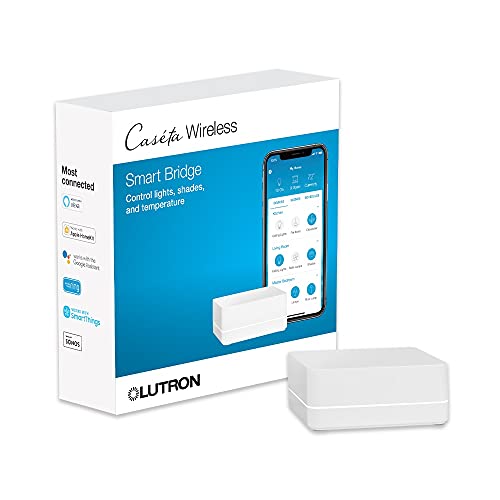
The Lutron Caseta Smart Hub serves as the central nervous system for a multi-brand smart home setup. Its standout feature is Clear Connect Technology, a proprietary wireless protocol that operates independently from your home Wi-Fi network. This means your smart lights and fans respond instantly without competing for bandwidth with streaming devices, security cameras, or other connected appliances. For homeowners juggling Alexa, HomeKit, and Google Home devices, this hub eliminates the frustration of fragmented control systems.
Setup is genuinely simple: plug the hub into any outlet near your router, connect it via the Lutron app, and begin adding compatible devices. The 75-device capacity provides ample room for whole-home automation without forcing you to commit to everything at once. Whether you're starting with a few dimmer switches in the living room or planning a comprehensive lighting overhaul, the hub scales with your needs. Voice control through Alexa works smoothly, and HomeKit integration gives Apple users native Siri control and automation options.
The primary consideration is that this hub only controls Lutron Caseta devices directly. You'll need to invest in Caseta-compatible dimmers, switches, and smart bulbs to unlock its full potential. However, for homeowners committed to building a cohesive lighting system, this focused approach delivers reliability and performance that justifies the investment. The lack of subscription fees and straightforward operation make it an excellent choice for DIYers seeking professional-grade smart home control.
| Specification | Detail |
|---|---|
| Model Number | L-BDG2-WH |
| Brand | Lutron |
| Color | White |
| Wireless Protocol | Clear Connect Technology |
| Device Capacity | Up to 75 Caseta devices |
| Compatible Voice Assistants | Amazon Alexa, Google Assistant, Apple Siri |
| Smart Home Integrations | Amazon Alexa, Apple HomeKit, Google Home, Ring, Serena Shades, Sonos |
| Installation | Plug-in (outlet powered) |
| Network Connection | Wi-Fi router connection required |
| Subscription Required | No |
Initial Setup
Plug the hub into a standard outlet within reasonable range of your Wi-Fi router. Download the Lutron app on your smartphone and create an account. Open the app, select 'Add Hub,' and follow the on-screen prompts to connect the hub to your Wi-Fi network. This typically takes 2-3 minutes.
Adding Devices
Once the hub is online, use the app to add Caseta dimmers, switches, or smart bulbs. Each device has a pairing code on its packaging. Follow the app instructions to assign devices to rooms and create custom names like 'Living Room Lights' or 'Kitchen Dimmer.' This makes voice control more intuitive.
Voice Control Setup
Link your Alexa, Google Home, or HomeKit account through the Lutron app. Once connected, you can control lights by voice ('Alexa, dim the living room lights to 50%') or through your voice assistant's native app. HomeKit users can also create automations based on time of day, location, or other triggers.
Ongoing Management
Use the app to create scenes (preset lighting combinations), set schedules, or adjust brightness remotely. The hub runs quietly in the background and requires no maintenance beyond keeping your router online.
Who Should Buy This Hub
The Lutron Caseta Smart Hub is ideal for homeowners who want reliable, interference-free smart lighting control across multiple voice ecosystems. It's particularly valuable for those who own both Alexa and HomeKit devices and need a single hub to manage everything. DIYers and homeowners planning to automate 10 or more light fixtures will benefit most from its 75-device capacity and scalability.
What You Need to Know Before Purchasing
This hub controls only Lutron Caseta devices. You'll need to purchase compatible dimmers, switches, and smart bulbs separately, which represents an additional investment. Pricing varies by device type and retailer. The hub itself requires a Wi-Fi connection and a nearby outlet, so plan placement accordingly. Verify that your router is compatible with standard 2.4GHz and 5GHz Wi-Fi bands.
Comparing to Alternatives
Other smart home hubs like SmartThings or Hubitat offer broader device compatibility but may require more technical setup. The Lutron Caseta system trades flexibility for simplicity and reliability. If you're heavily invested in a single ecosystem (all Alexa, all HomeKit, or all Google Home), you might not need a dedicated hub. However, if you're mixing platforms, the Caseta hub's multi-ecosystem support justifies the investment.
Installation Considerations
Installation is straightforward for the hub itself, but plan your Caseta device placement carefully. Dimmers and switches require neutral wires in most cases, which not all older homes have. Consult an electrician if you're unsure about your home's wiring. Smart bulbs offer an easier alternative if rewiring isn't practical.
Optimize Hub Placement
Position the hub centrally in your home, away from metal objects and microwave ovens that can interfere with wireless signals. Placing it on a shelf rather than in a cabinet improves range and responsiveness.
Start with Key Areas
Rather than automating every light at once, begin with high-traffic areas like the kitchen, bedroom, and living room. This lets you establish routines and understand your preferences before expanding further.
Use Scenes for Efficiency
Create scenes for common scenarios: 'Movie Night' (dim all lights to 20%), 'Good Morning' (gradually brighten bedroom lights), or 'Leaving Home' (turn off all lights). Scenes execute multiple commands with a single voice request or app tap.
Layer Your Automations
Combine the Lutron app's scheduling with voice assistant routines for powerful automation. For example, have Alexa trigger a 'Bedtime' scene that activates your Caseta dimmer settings while also adjusting your thermostat.
Plan for Future Expansion
With 75-device capacity, you have room to grow. Consider future rooms or outdoor spaces when designing your initial setup, and choose a hub location that will serve your long-term smart home vision.

Pros
- No hub needed - simple plug-and-play setup with just the Kasa app
- Works seamlessly with both Alexa and Google Home ecosystems
- Scheduling and timer features let you automate everyday routines
- Compact design doesn't block adjacent outlets
- Trusted by millions of users with strong brand reputation
Cons
- Requires 2.4GHz Wi-Fi connection - may not work on 5GHz-only networks
- No built-in energy monitoring to track power consumption
The Kasa Smart Plug HS103P4 offers straightforward smart home automation for homeowners who want to add remote control to existing devices without complexity. With dual compatibility for both Alexa and Google Home, you get flexibility in choosing your voice assistant ecosystem. The plug connects directly to your Wi-Fi network, eliminating the need for a separate hub that takes up space and requires additional setup.
The scheduling and timer functions are particularly useful for seasonal decorations, vacation mode, or daily routines. You can set lights to turn on at sunset, fans to run on a timer, or humidifiers to activate automatically. The Kasa app provides an intuitive interface for managing individual plugs or creating automations across all four units in the pack. The 15-amp rating handles most standard household appliances safely, and UL certification confirms the product meets established safety standards.
For the price point of a four-pack, this represents solid value for DIYers looking to gradually convert their home to smart control. The compact form factor is thoughtfully designed to avoid blocking neighboring outlets, a common frustration with bulkier smart plugs. If your home network runs on 2.4GHz Wi-Fi, setup is quick and reliable, though users with exclusively 5GHz networks will need to enable a dual-band option on their router.
| Specification | Details |
|---|---|
| Model | HS103P4 |
| Color | White |
| Quantity | 4-Pack |
| Dimensions | 1.57 x 1.5 x 2.62 inches |
| Weight per Unit | 0.25 pounds |
| Amperage Rating | 15 Amp |
| Wi-Fi Standard | 2.4GHz |
| Voice Assistants | Amazon Alexa, Google Assistant |
| Mobile Compatibility | iOS 10.0+, Android 5.0+ |
| Certification | UL Certified |
| Setup | No hub required |
Initial Setup: Plug the Kasa Smart Plug into any standard outlet. Download the free Kasa app on your smartphone (iOS 10.0 or later, Android 5.0 or later). Open the app and follow the on-screen prompts to connect the plug to your 2.4GHz Wi-Fi network. You'll be guided through naming each plug for easy identification.
Remote Control: Once connected, use the Kasa app to turn any plugged-in device on or off from your smartphone, whether you're at home or away. Each plug operates independently, so you can control multiple devices simultaneously or create custom groupings within the app.
Voice Commands: Link your Kasa account to Alexa or Google Home. Use voice commands like 'Alexa, turn on the living room lamp' or 'Hey Google, turn off the kitchen fan.' Set up routines and automations through your voice assistant for hands-free control.
Scheduling and Timers: Create schedules within the Kasa app to automatically turn devices on and off at specific times. Use countdown timers for temporary control, perfect for Christmas lights, space heaters, or coffee makers. Combine multiple schedules for complex automation routines.
Electrical Safety: Do not exceed the 15-amp rating. Check the wattage of devices you plan to control - multiply volts by amps to ensure the device doesn't exceed 1,800 watts. Never use the plug with high-power appliances like space heaters, air conditioners, or ovens.
Proper Installation: Ensure the outlet you're using is in good condition and not damaged. Don't force the plug into the outlet. Make sure the outlet is grounded and properly installed. Keep the plug away from water and moisture.
Network Security: Use a strong, unique password for your Kasa account. Keep your mobile app and home Wi-Fi network updated with the latest security patches. Avoid using public Wi-Fi networks when controlling your plugs remotely. Enable two-factor authentication on your Kasa account for added security.
Device-Specific Precautions: Don't use with devices that have their own on/off cycles or require manual reset (like some appliances with safety features). Avoid using with medical equipment or devices critical to home safety. Never leave high-heat devices unattended when controlled remotely.
Maximize Your Setup: Use the four-pack to create a coordinated smart home experience. Place one in your bedroom for bedside lamp control, one in the living room for entertainment devices, one in the kitchen for coffee makers or toasters, and one in a seasonal space for holiday decorations. This approach lets you learn the system gradually while building convenience.
Create Smart Routines: Combine multiple plugs into routines through your voice assistant. For example, create a 'Good Morning' routine that turns on your coffee maker and bedroom lamp simultaneously, or an 'Away Mode' that powers down non-essential devices when you leave home.
Optimize Wi-Fi Performance: Place your router centrally in your home for strong 2.4GHz signal reach. If you have a dual-band router, ensure it's broadcasting on 2.4GHz (many modern routers do both simultaneously). If setup fails, try plugging in closer to the router temporarily, then move it to your desired location once connected.
Energy-Conscious Automation: Use timers to prevent devices from running unnecessarily. Set fans to turn off after 2 hours, ensure holiday lights power down at midnight, or program seasonal heating devices to operate only during specific hours. While these plugs don't track energy use directly, smart scheduling reduces waste.
Vacation and Security: Create randomized schedules when away to simulate occupancy - turn lights on and off at varying times to deter potential intruders. Use the app's away mode features to monitor and control devices remotely, giving you peace of mind while traveling.

Pros
- Hub-based system provides dependable performance without relying on Wi-Fi stability
- No neutral wire requirement makes installation feasible in older homes and challenging locations
- Excellent ecosystem compatibility across major smart home platforms
- Wireless Pico remote lets you add control points without running new electrical wiring
- Flicker-free dimming with extensive LED compatibility ensures smooth, high-quality lighting
Cons
- Wallplate not included, requiring a separate purchase for a finished appearance
- Hub takes up space and requires a power outlet, adding one more device to your setup
The Lutron Caseta Original Smart Dimmer Switch Kit represents a thoughtful approach to smart lighting for homeowners who prioritize reliability over convenience. Unlike Wi-Fi-dependent switches that can lag or drop connection during network congestion, this system uses Lutron's proprietary hub to deliver fast, consistent performance. The hub communicates directly with the dimmer switch and Pico remote using a dedicated protocol, ensuring your lights respond instantly whether your internet is running smoothly or not.
Installation is genuinely straightforward for a smart dimmer. The dimmer switch itself requires no neutral wire, a significant advantage in older homes where neutral wires aren't present at every switch location. Once installed, the included Pico remote can mount on any wall in your home without additional wiring, letting you create multi-location control in minutes. The dimmer handles up to 150W of LED bulbs with flicker-free precision, and Lutron's ongoing compatibility work with LED manufacturers means you're less likely to encounter dimming problems that plague some budget alternatives.
The ecosystem integration is genuinely broad. You can control your lights through Alexa, Apple HomeKit, Google Home, and Ring, plus manage everything through the Lutron app with scheduling, geofencing, and scene creation. This flexibility means the system adapts to how you already control your smart home, rather than forcing you into a single platform. The sleek dimmer design blends naturally with standard light switches, maintaining a clean aesthetic instead of looking like a tech gadget on your wall.
| Specification | Details |
|---|---|
| Brand | Lutron |
| Product Line | Caseta Original |
| Type | Smart Dimmer Switch Kit |
| Includes | Smart Hub, Dimmer Switch, Pico Remote, Wall Mount Bracket |
| Neutral Wire Required | No |
| Installation Time | Under 15 minutes |
| LED Capacity | Up to 150W dimmable LEDs |
| Dimming Technology | Flicker-free LED dimming |
| Connection Method | Proprietary hub-based (no Wi-Fi required) |
| Smart Home Compatibility | Alexa, Apple HomeKit, Google Home, Ring |
| Remote Control Range | Up to 10 locations with Pico remote |
| App Control | Lutron app with scenes, scheduling, geofencing, timers |
| Design | Sleek, modern aesthetic |
| Wallplate | Not included |
Before You Start: Turn off power at the breaker. Verify your switch box has space for the dimmer (standard size) and check whether a neutral wire is present. This kit doesn't require one, but having one available gives you more options.
Step 1 - Install the Dimmer Switch: Remove the old switch and disconnect the wires. Connect the Caseta dimmer according to the included wiring diagram. Typically, you'll connect the line (hot) wire, load (light) wire, and ground. Push the dimmer into the box and secure it with the provided screws. Turn power back on and test the switch.
Step 2 - Set Up the Hub: Plug the Lutron Smart Hub into a power outlet near your router. Open the Lutron app, create an account, and follow the pairing instructions to connect the hub to your dimmer switch. The app will guide you through the process.
Step 3 - Install the Pico Remote: Mount the Pico remote on any wall using the included bracket and adhesive strips or screws. Press the pairing button on the hub, then on the Pico remote to connect them. The remote will now control your dimmer wirelessly.
Step 4 - Connect to Smart Home Platforms: In the Lutron app, enable integrations with Alexa, Apple HomeKit, Google Home, or Ring. Follow each platform's pairing process to add your new dimmer to your existing smart home setup.
Placement Matters: Position your Lutron Smart Hub in a central location in your home for optimal wireless range to all your Caseta devices. Avoid placing it in closets or metal cabinets, which can weaken the signal.
Create Scenes for Convenience: Use the Lutron app to set up scenes like 'Movie Time' (dim to 20%) or 'Good Morning' (brighten to 100%). You can trigger these scenes from the app, Pico remote, or voice commands, making your lighting respond to your daily routines automatically.
Expand Gradually: You don't need to install Caseta dimmers everywhere at once. Add them room by room as your budget allows. Each new dimmer pairs seamlessly with your existing hub and Pico remotes.
Test LED Compatibility Early: If you're using older or budget LED bulbs, test them with the dimmer before installing many throughout your home. While Lutron's dimming is excellent, some older LEDs may flicker. Lutron provides a compatibility list on their website.
Use Geofencing for Automation: Enable geofencing in the app to have lights turn on or off based on whether you're home. This works even if your Wi-Fi is down, since the hub handles the automation locally.
Is This Right for You? Choose the Lutron Caseta Original if you want smart lighting that prioritizes reliability and works without Wi-Fi dependency. It's ideal for homeowners in older houses without neutral wires, those frustrated with Wi-Fi switch lag, or anyone who values broad smart home compatibility. If you prefer a single-brand ecosystem or want the absolute cheapest option, other systems may suit you better.
Installation Considerations: While no neutral wire is required, having one available is helpful. If you're uncomfortable working with electrical wiring, hire a licensed electrician for the dimmer installation (usually a quick, inexpensive job). The Pico remote is straightforward enough for any DIYer to mount.
Budget Planning: This kit covers one dimmer location plus one wireless remote. Plan to add wallplates separately if you want a polished look. If you need multiple dimmers and remotes, budget accordingly, as costs add up with each additional unit.
Smart Home Integration: Verify that your preferred smart home platform (Alexa, Apple HomeKit, Google Home, Ring) is listed in the compatibility section before purchasing. The Caseta system works with all major platforms, but confirm yours is supported.
Long-Term Value: Lutron is known for reliability and longevity. The hub-based approach means your system won't become obsolete if you change internet providers or upgrade your Wi-Fi. This is worth considering if you plan to keep your smart home system for many years.

Pros
- Eliminates need for a hub, reducing setup complexity and cost
- Works with major voice assistants for hands-free lighting control
- Direct Wi-Fi connection ensures responsive performance
- UL certification confirms it meets rigorous safety standards
- Straightforward installation for homeowners with basic electrical knowledge
Cons
- Requires a neutral wire at the switch location, which older homes may lack
- Limited to 2.4GHz Wi-Fi networks, not compatible with 5GHz bands
The Kasa HS200 brings smart home convenience to your lighting without requiring a dedicated hub, making it an accessible choice for homeowners new to smart home technology. By connecting directly to your 2.4GHz Wi-Fi network, this single-pole switch lets you control lights remotely through the Kasa app or integrate with Google Home and Alexa for voice commands, whether you're in another room or away from home.
Installation is straightforward for those comfortable working with electrical switches, though it does require a neutral wire at the switch location - a consideration that's essential to verify before purchasing. The UL certification provides confidence in its electrical safety and build quality, and the switch's responsive performance reflects its direct Wi-Fi connection architecture without the latency issues sometimes found in hub-dependent systems.
This switch works best in homes with reliable 2.4GHz Wi-Fi coverage and represents a practical entry point into smart lighting automation. It's particularly valuable for renters and homeowners looking to upgrade individual rooms without committing to a whole-home system, though you'll want to ensure your wiring setup includes the neutral wire this model requires.
| Specification | Details |
|---|---|
| Model Number | HS200 |
| Switch Type | Single Pole |
| Connectivity | 2.4GHz Wi-Fi |
| Hub Required | No |
| Wiring Requirement | Neutral Wire Required |
| Voice Control | Google Home, Amazon Alexa |
| Certification | UL Certified |
| Color | White |
| Control Method | App, Voice, Manual Switch |
Before You Start: Turn off power at the breaker and verify the circuit is de-energized. Check that your switch location has a neutral wire (typically a white wire in the switch box). If unsure, consult an electrician.
Installation Steps: Remove the old switch and disconnect the wires. Connect the line (hot) wire to the brass terminal, the load wire to the other brass terminal, and the neutral wire to the silver terminal. Attach the ground wire to the green screw. Carefully push the switch into the box, secure the faceplate, and restore power at the breaker.
Setup: Download the Kasa app, create an account, and follow the in-app pairing instructions. Select your Wi-Fi network and complete the setup. Once connected, link the switch to Google Home or Alexa through their respective apps for voice control.
Electrical Safety: Always turn off power at the breaker before starting installation. Use a non-contact voltage tester to confirm the power is off. If you're uncomfortable working with electrical wiring, hire a licensed electrician to ensure proper installation and compliance with local electrical codes.
Neutral Wire Verification: This switch requires a neutral wire to operate safely. Attempting to install it without a neutral wire can damage the switch and create a fire hazard. If your switch location lacks a neutral wire, consult an electrician about running one or consider alternative smart switch models designed for your wiring configuration.
Wi-Fi Security: Use a strong, unique password for your Kasa account. Enable two-factor authentication if available. Keep the switch firmware updated through the app to receive security patches and performance improvements.
Is This Switch Right for You? The Kasa HS200 suits homeowners who want affordable smart lighting without a hub and whose switch locations have neutral wires. It's ideal for single-room upgrades, rental properties (where permitted), and homes with solid 2.4GHz Wi-Fi coverage.
Key Considerations: Verify your switch box contains a neutral wire before purchasing - this is the most common installation barrier. Ensure your Wi-Fi router is positioned to provide reliable 2.4GHz coverage throughout your home. Consider how many switches you plan to install, as each requires individual setup through the app.
Compatibility Check: This switch works with Google Home and Alexa but not with Apple HomeKit or other platforms. If you use HomeKit exclusively, explore alternative smart switch options. For multi-switch installations, plan your Wi-Fi network to handle multiple connected devices without performance degradation.

Pros
- Multi-protocol support gives you maximum flexibility when choosing compatible smart devices
- Centralized control reduces app clutter and simplifies home automation management
- Strong compatibility with popular voice assistants expands control options
- Reliable automation engine handles complex routines and conditional triggers
- Established ecosystem with thousands of compatible third-party products
Cons
- Setup and initial configuration can be technical for users unfamiliar with smart home protocols
- Requires stable WiFi connection for optimal performance and cloud features
The SmartThings Hub 3rd Generation serves as the central nervous system for multi-brand smart homes. By supporting Zigbee, Z-Wave, and cloud-to-cloud connections simultaneously, it eliminates the need for separate hubs for different device types. This unified approach means you can mix and match products from various manufacturers without compatibility headaches, giving you genuine freedom in building your ideal smart home setup.
Automation is where this hub truly shines. You can create sophisticated routines that respond to real-world events: lights turning on when a door opens, thermostats adjusting when the last person leaves, or security cameras activating based on motion detection. The app interface makes these automations accessible without requiring programming knowledge, though users comfortable with more advanced logic will find plenty of depth here.
Integration with Alexa and Google Home adds voice control to your entire ecosystem, while local processing ensures critical automations continue functioning even during internet outages. For homeowners committed to building a flexible, expandable smart home rather than being locked into a single manufacturer's products, this hub provides the control center you need.
| Specification | Details |
|---|---|
| Brand | Samsung SmartThings |
| Model | GP-U999SJVLGDA (3rd Generation) |
| Supported Protocols | Zigbee, Z-Wave, Cloud-to-Cloud |
| Voice Assistant Compatibility | Amazon Alexa, Google Home |
| Control Method | Smartphone app |
| Primary Functions | Device monitoring, automation, control |
| Color | White |
| Automation Triggers | Door/window open, occupancy, motion, time-based |
| Network Requirements | WiFi connection required |
Initial Setup: Connect the hub to power and your home WiFi network using the SmartThings app. Create a Samsung account if you don't have one, then add your hub to your account. The app will guide you through pairing compatible devices.
Adding Devices: Use the app's "Add Device" function to connect Zigbee, Z-Wave, and cloud-based smart devices. Each device type has slightly different pairing procedures, but the app provides step-by-step instructions for each. Most devices pair within seconds once you initiate pairing mode.
Creating Automations: Navigate to the Automations section and select "Create Automation." Choose a trigger (door opens, motion detected, time of day), then select what devices should respond and how. Test your automation to ensure it works as expected before relying on it for daily use.
Voice Control: Link your Alexa or Google Home account in the SmartThings app settings. Once connected, you can control compatible devices by voice through either assistant's app or smart speakers.
Is This Right for You? Choose this hub if you own or plan to own smart devices from multiple manufacturers. It's ideal for homeowners who want flexibility rather than being committed to a single brand's ecosystem. If you already have a substantial collection of smart home devices, verify they use Zigbee, Z-Wave, or cloud connectivity before purchasing.
What to Consider: Ensure your home WiFi is reliable and covers the area where you'll place the hub. A strong, stable connection is essential for consistent performance. Consider your comfort level with app-based setup and automation creation. While the interface is user-friendly, some initial learning is required.
Complementary Products: Pair this hub with a mix of Zigbee and Z-Wave devices to maximize its capabilities. Popular compatible devices include smart lights, door/window sensors, motion detectors, smart locks, and thermostats from brands like Philips Hue, IKEA Tradfri, Enbrighten, and many others. Start small with a few devices and expand gradually as you become comfortable with automation.
Budget Planning: The hub itself is a one-time purchase. Budget separately for individual smart devices, which range from affordable sensors to premium smart locks and thermostats. Many compatible devices offer good value without requiring expensive proprietary ecosystems.
Optimize Hub Placement: Position the hub centrally in your home for best Zigbee and Z-Wave range. Avoid placing it in closets, cabinets, or metal enclosures that block wireless signals. A central location like a living room or hallway typically works well.
Master Automation Naming: Use clear, descriptive names for your automations ("Bedroom Lights Off at Midnight" instead of "Automation 1"). This makes managing multiple automations easier and helps you remember what each one does.
Layer Your Automations: Combine multiple triggers for sophisticated routines. For example, create an automation that activates only when it's after sunset AND motion is detected AND you're away from home. This prevents unnecessary triggers during the day.
Test Before Relying: When creating new automations, observe them in action for a few days before depending on them. This helps catch any unintended behavior before it becomes a daily frustration.
Keep Firmware Updated: Check the SmartThings app regularly for hub firmware updates. These updates often improve compatibility, add new features, and enhance security. Enable automatic updates if available.
Smart Home Hub Buying Guide
Choosing the right smart home hub is arguably the most consequential purchase in any connected home setup. Get it right and everything from your smart thermostat to your motorized window shades works in harmony. Get it wrong and you are locked into a walled garden that limits your options for years. These are the factors that matter most.
Protocol Support: Zigbee, Z-Wave, Wi-Fi, Thread, and Matter
The wireless protocol a hub supports determines which devices it can control directly versus which ones require a cloud relay. Zigbee and Z-Wave are the two dominant mesh radio standards and they are not interchangeable. Zigbee is more widely adopted across budget-friendly sensors and bulbs. Z-Wave operates on a less congested frequency and offers slightly better range through walls. A hub that supports both gives you the widest device compatibility.
Thread is the newer mesh protocol built into the Matter standard, and it is becoming essential for forward-looking setups. The Aqara Hub M3 (B0CWLHSKYC) stands out here because it serves simultaneously as a Zigbee coordinator, Thread border router, Matter controller, and IR blaster, covering nearly every protocol you are likely to encounter. For households already deep in the Lutron Caseta ecosystem, the Lutron Caseta Smart Hub (B00XPW67ZM) communicates over Lutron’s proprietary Clear Connect RF protocol, which is exceptionally reliable and nearly immune to Wi-Fi congestion issues that plague many competing systems.
Local Processing vs. Cloud Dependency
This distinction separates hubs that keep working when your internet goes down from those that become paperweights. Cloud-dependent hubs route every command through a remote server, adding latency and creating a single point of failure. A hub with robust local processing executes automations and responds to voice or app commands entirely on your home network, often in under a hundred milliseconds.
The Tapo CentralHub H500 (B0F77JHSMV) takes local processing seriously by including sixteen gigabytes of built-in storage and a two-and-a-half-inch SATA expansion slot, allowing AI-powered camera analysis to run entirely on device without any cloud subscription. The Tapo Smart IR and IoT Hub H110 (B0FNXCFN6J) leans on cloud for some functions but remains a competitive budget option for homes with mostly Tapo-branded devices. If complete local control is your top priority, look for hubs that explicitly advertise offline automation support.
Ecosystem Compatibility: Alexa, Google Home, and Apple HomeKit
Most households have already committed to one major voice assistant platform, and your hub needs to play nicely with it. All nine products in this guide support Amazon Alexa. Most also support Google Home. Apple HomeKit support is more selective and matters significantly if you rely on an iPhone or iPad as your primary control interface.
The Lutron Caseta Smart Hub (B00XPW67ZM) is one of the few lighting hubs that carries official Apple HomeKit certification alongside Alexa and Google Home compatibility, which is rare at its price tier. The Aqara Hub M3 (B0CWLHSKYC) extends this further by also supporting SmartThings, Home Assistant, and IFTTT, making it arguably the most ecosystem-agnostic option in the lineup. The SmartThings Hub 3rd Generation (B07FJGGWJL) connects Zigbee, Z-Wave, and cloud-to-cloud protocols under one roof and has one of the largest third-party device libraries of any commercial hub available.
Device Capacity and Expandability
A small apartment with a handful of smart bulbs and a voice speaker has very different needs from a three-thousand-square-foot home loaded with sensors, cameras, locks, and ceiling fans on smart controllers. Pay attention to the maximum device count a hub supports before you commit.
The Lutron Caseta Smart Hub (B00XPW67ZM) supports up to seventy-five devices, which is more than enough for most single-family homes. The Tapo CentralHub H500 (B0F77JHSMV) is architected specifically for camera-heavy installations, supporting up to sixteen Tapo cameras and sixty-four Sub-G sensors simultaneously. If you are planning a larger rollout, the SmartThings Hub (B07FJGGWJL) is often cited for its expansive third-party library and has no hard device cap in the same way proprietary hubs do.
Hub vs. No-Hub Devices: When Do You Actually Need a Hub?
Not every smart home device requires a dedicated hub. The Kasa Smart Plug HS103P4 (B07RCNB2L3) and Kasa Smart Plug Ultra Mini EP10P2 (B091FXQQMQ) both connect directly over 2.4GHz Wi-Fi with no hub required, making them an easy on-ramp for anyone who wants basic scheduling and voice control without the upfront investment of a hub. Similarly, the Kasa Smart Light Switch HS200 (B01EZV35QU) works standalone over Wi-Fi.
The trade-off with hub-free Wi-Fi devices is scalability. Each device occupies a slot on your router, and dozens of Wi-Fi devices can strain even a high-performance mesh network system. Zigbee and Z-Wave devices, by contrast, form their own mesh and offload traffic from your primary network. If you plan to grow beyond twenty or thirty devices, a proper hub is worth the investment.
IR Blaster Support for Legacy Devices
Many homeowners overlook infrared control, but it is the bridge that brings non-smart TVs, air conditioners, and audio receivers into a modern automation workflow. The Tapo Smart IR and IoT Hub H110 (B0FNXCFN6J) is Matter-certified and supports over eighteen device categories and eight thousand infrared brands, making it a remarkably capable universal remote that doubles as a smart home hub. The Aqara Hub M3 (B0CWLHSKYC) also includes an IR blaster alongside its multi-protocol radio stack, which is an unusual combination at any price point.
Setup Experience and Ongoing Reliability
A hub that takes three hours to configure and requires a computer science degree to automate is not a good hub regardless of its spec sheet. Lutron’s Caseta ecosystem is consistently praised for its plug-and-play setup. The Lutron Caseta Original Smart Dimmer Switch Kit (B07G5V6M6G) includes the hub, a Pico remote, and a wall mount bracket in a single package, making it genuinely beginner-friendly. Kasa’s app ecosystem is similarly intuitive for Wi-Fi-only households.
For power users, the Aqara Hub M3 rewards patience with a setup process that unlocks deep automation capabilities unavailable in simpler systems. Its Power over Ethernet support is particularly valuable for permanent installations where you want wired reliability and do not want to worry about Wi-Fi dead zones. Pair it with well-placed wireless security sensors and you have a genuinely comprehensive monitoring system.
Budget Considerations Across the Lineup
Smart home hubs span a wide price spectrum. Budget-friendly options like the Kasa smart plugs and the Tapo H110 IR hub offer tremendous value for anyone starting out or building around a single brand ecosystem. Mid-range options like the Lutron Caseta Smart Hub and the Aqara Hub M3 add cross-ecosystem compatibility and more robust protocol support. The SmartThings Hub and Tapo H500 CentralHub sit at the premium end of this lineup but deliver capabilities that justify their position for serious installations.
Before committing to a hub price tier, map out your existing devices and future plans. If you already own several smart display screens or are planning to add outdoor security cameras, you may find that investing in a capable mid-range or premium hub saves you money over time by reducing duplication and eliminating cloud subscription fees.
Why Trust HomeThru
HomeThru is an editorially independent review platform with no affiliation to any manufacturer or retailer. We do not sell products, process orders, or handle warranties. Our recommendations are built on structured independent research: we analyze verified owner feedback across thousands of reviews, compare manufacturer specifications side by side, evaluate protocol documentation, and assess long-term reliability patterns reported by real users in community forums and support channels.
For this smart home hub guide, we cross-referenced compatibility claims against official Apple HomeKit, Amazon Alexa, Google Home, and SmartThings device lists. We also analyzed how each hub handles firmware update cadence, which is a reliable proxy for long-term manufacturer support. Products that have received consistent updates over multiple years score higher in our evaluation than those with stagnant firmware histories. We want you to buy something you will still be happy with in five years, not just five months.
We cover the full breadth of the connected home, from water leak sensors to smart smoke alarms, so our editorial team brings genuine cross-category knowledge to every hub recommendation. A hub that works beautifully for lighting but fails to reliably trigger your leak detector automations is not a hub we can recommend in good conscience.
Final Thoughts
No single hub is right for every home, but the lineup above covers every major use case from budget-friendly Wi-Fi-only control to advanced multi-protocol automation with local processing. Here is how we would summarize the standout options from this group.
- Best Overall Smart Hub: Aqara Smart Home Hub M3 delivers the broadest protocol coverage of any hub in this lineup, combining Zigbee, Thread, Matter, Bluetooth, Wi-Fi, IR, and PoE into a single compact device with support for Apple HomeKit, Alexa, SmartThings, Home Assistant, and IFTTT.
- Best for Camera-Heavy Homes: Tapo CentralHub H500 is purpose-built for installations with multiple security cameras and sensors, offering on-device AI processing and expandable local storage with no monthly cloud fee required.
- Best for Lutron Caseta Users: Lutron Caseta Smart Hub L-BDG2-WH is the only hub in this group that brings Apple HomeKit, Alexa, and Google Home compatibility together with Lutron’s industry-leading Clear Connect RF reliability across up to seventy-five devices.
- Best Budget IR and IoT Hub: Tapo Smart IR and IoT Hub H110 punches well above its price class with Matter certification, universal IR control for thousands of legacy appliance brands, and a built-in chime, making it the most affordable entry point into a proper hub-based setup.
- Best for Z-Wave and Zigbee Power Users: SmartThings Hub 3rd Generation remains the most device-compatible commercial hub available with native Zigbee, Z-Wave, and cloud-to-cloud protocol support alongside Alexa and Google Home integration and one of the largest third-party device libraries in the industry.
If you are still building out the rest of your smart home ecosystem, our guides to smart light switches, video doorbells, and smart sprinkler controllers will help you choose devices that pair seamlessly with whichever hub you select. The right hub is the foundation; everything else builds on top of it.
Frequently Asked Questions
Do I Need a Smart Home Hub if My Devices Are All Wi-Fi?
If you own fewer than fifteen to twenty Wi-Fi smart devices and are happy managing them through individual brand apps, you may not need a dedicated hub right now. However, a hub becomes valuable when you want cross-brand automations, for example, having a Kasa plug turn off automatically when your Lutron lights switch on at sunset. A hub also reduces strain on your router by offloading Zigbee and Z-Wave traffic to a separate mesh radio. For most growing smart homes, a hub is a worthwhile investment sooner rather than later.
What Is Matter and Why Does It Matter for Hub Buyers?
Matter is an open connectivity standard backed by Apple, Amazon, Google, and Samsung that allows smart home devices from different manufacturers to communicate without proprietary bridges. A Matter-compatible hub can control Matter-certified devices natively, regardless of brand. This is a significant development because it means buying a Matter hub today future-proofs your investment against the fragmented ecosystem landscape that has frustrated smart home buyers for years. Look for hubs that also function as Thread border routers for maximum Matter device compatibility, as Thread is the preferred transport layer for low-power Matter sensors and automated home devices.
Can a Smart Home Hub Control Legacy Non-Smart Appliances?
Yes, if the hub includes an IR blaster. Infrared is the communication protocol used by virtually every traditional TV remote, air conditioner remote, and stereo receiver. Hubs like the Tapo H110 and Aqara Hub M3 include built-in IR transmitters that can mimic thousands of remote control signals, letting you schedule, automate, or voice-control appliances that were never designed to be smart. This is a practical way to integrate an older TV or window AC unit into your automations without replacing the appliance itself.
Is a Smart Home Hub Secure from Hacking or Privacy Intrusions?
Security varies significantly by hub. Cloud-dependent hubs transmit data to remote servers and their security depends entirely on how well the manufacturer manages those servers. Local-processing hubs keep data on your home network, which limits external attack surface but requires you to keep firmware updated. Best practices include using strong unique passwords for your hub’s app account, enabling two-factor authentication where available, keeping firmware current, and placing your hub on a dedicated IoT VLAN if your router supports it. Our guide to home mesh Wi-Fi systems covers network segmentation options worth exploring.
What Happens to My Smart Home If the Hub Manufacturer Shuts Down?
This is a real risk worth thinking about. If a cloud-dependent hub loses server support, it typically stops working entirely. Hubs built on open standards like Zigbee and Z-Wave can often be migrated to a new controller. Matter-certified hubs are less vulnerable because the standard is maintained by an industry-wide consortium rather than a single company. Before buying, check the manufacturer’s track record on long-term support and whether the hub’s core radio functions would survive a cloud shutdown. SmartThings and Lutron both have strong track records in this regard.